Short answer
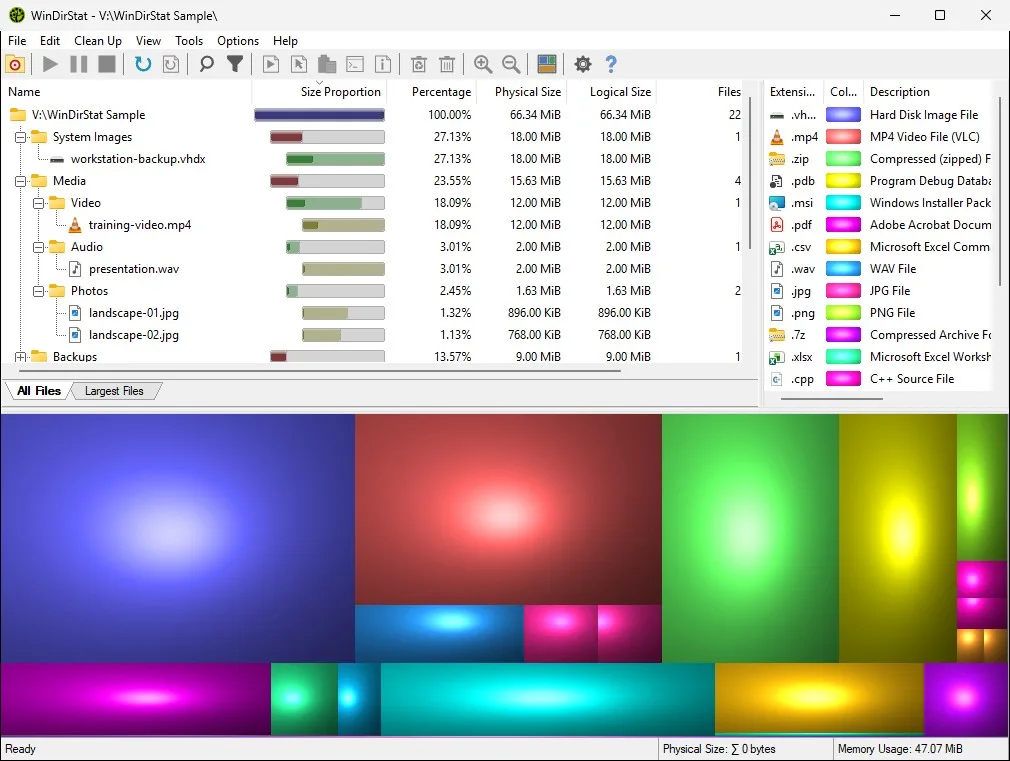
In the WinDirStat treemap every file is a rectangle whose area matches the space it uses on disk, and files in the same folder sit together inside that folder's block. Color shows the file type: the type using the most bytes is blue, the next red, then green. Click a rectangle to select the file in the tree, and press + to zoom into its folder.
How do I use the WinDirStat treemap to find what fills a drive?
- Let the scan finish. Wait until the progress in the status bar stops and the treemap stops redrawing.
- Find the largest color block. Look for the biggest single-colored area; it is usually one file type spread across one folder.
- Click it. Click the rectangle. WinDirStat selects that file in the folder tree, with its full path.
- Zoom into its folder. Press Select Parent (the / key) until the frame covers the folder you want, then press + to zoom in.
- Decide what to do. Right-click the file in the tree for Open, Select in Explorer or Delete (to Recycle Bin).
What do the rectangles in the WinDirStat treemap mean?
Each file on the scanned drive or folder is one rectangle, and its area is proportional to the space the file takes. Rectangles are grouped inside their folders, and folders inside their parent folders, so a big block made of many small tiles is a folder with many files, while one large tile is a single large file. The cushion shading of the Classic preset helps the eye separate neighboring tiles; it does not encode size or type. Hover over a tile and the status bar shows its path and size. In the folder tree, hovering a Size Proportion bar shows that item’s share of the whole scan and of its parent folder, a tooltip added in version 2.9.0.
How does WinDirStat choose treemap colors?
Colors belong to file types, not folders. WinDirStat ranks every extension by the total bytes it uses and hands out a fixed palette in that order: blue for the biggest type, then red, green, yellow, cyan and magenta, and so on through 17 distinct colors. Every type from the 18th onward shares white. The file-type list on the right shows the same color next to each extension, so you can read the legend there. Group Unregistered Types in the Options menu merges extensions that Windows does not recognize into one entry and one color.
Which treemap layout should I use in WinDirStat?
The default is Rows, the layout WinDirStat has always drawn. The View > Treemap menu also offers Squarified, which makes tiles closer to squares and easier to click, and Hilbert and Moore, which keep neighboring files close together along a curve. Version 2.8.0 added a flame graph and a sunburst chart as alternative views of the same scan. Color presets (Classic, Calm, Flat, Pastel, High Contrast) change only the look.
Why doesn’t the treemap match the size Windows shows for my drive?
By default the treemap shows only the files WinDirStat scanned. Free space and “unknown” space (files it could not read, such as protected system areas) are hidden. Press F6 for Show Free Space and F7 for Show Unknown to add them as their own blocks. Running WinDirStat as administrator lets it read more of the drive, which shrinks the unknown block. After you delete files, press F5 to refresh the selected folder so the map matches the drive again. Next, find the large files the map points at. Checked against WinDirStat 2.9.0.
| Action | Key or menu |
|---|---|
| Zoom in on the selection | +, or View > Zoom In |
| Zoom out | -, or View > Zoom Out |
| Back to the whole scan | Numpad . or Ctrl+. (View > Zoom Reset) |
| Select the parent folder | Numpad / or Ctrl+- |
| Select the child again | Numpad * or Ctrl+= |
| Measure by file length instead of disk use | Ctrl+L (View > Use Logical Size) |
| Hide or show the treemap | F9 (Options > Show Visualization) |
Keys from the IDR_MAINFRAME accelerator table in windirstat.rc; menu labels from lang_en.txt, both at the checked release tag.
Frequently asked questions
Why is most of my WinDirStat treemap one color?
One file type holds most of the bytes in that area, so its color fills it: a folder of videos, disk images or game archives is often a single block. Open the file-type list on the right to see which extension it is and how many gigabytes it holds.
What is the difference between logical and physical size in WinDirStat?
Physical size is the space a file really occupies on the drive, after NTFS compression, sparse regions and cluster rounding. Logical size is the file's length in bytes. The treemap uses physical size by default; press Ctrl+L to switch to logical size and Ctrl+L again to switch back.