Short answer
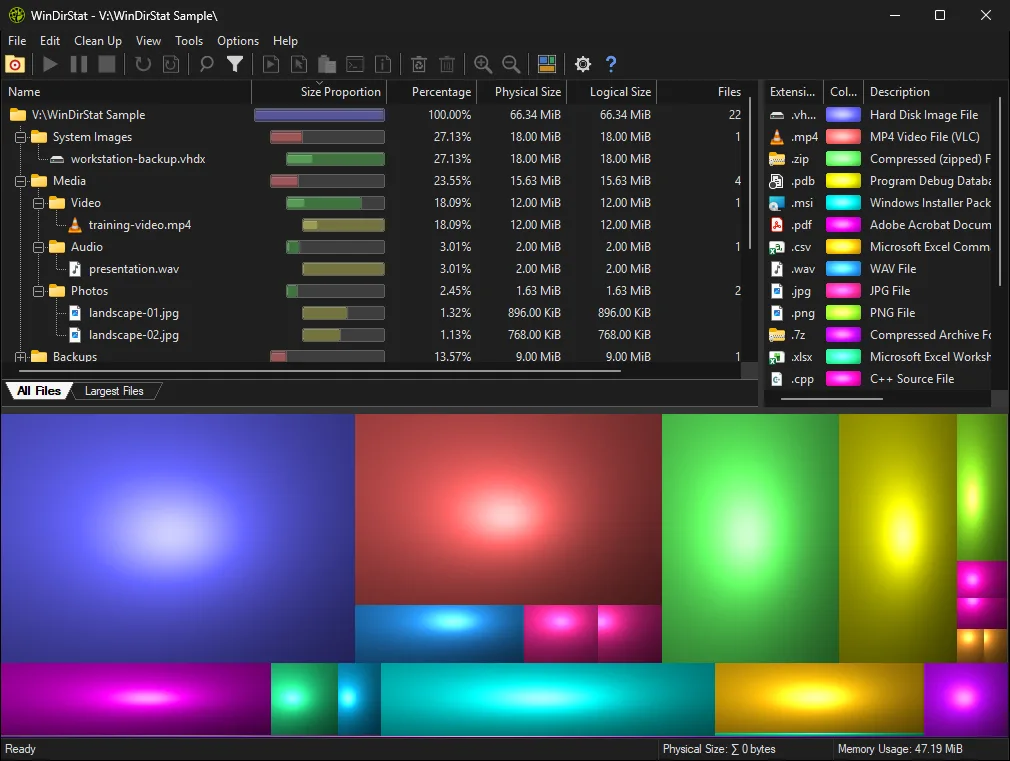
To check storage on a Windows PC, open Settings > System > Storage: it shows how much of drive C: is used and splits it into categories such as apps, temporary files and documents. To see which folders and files use the space, install the free disk space analyzer WinDirStat, scan the drive, and read its folder tree, file-type list and treemap.
How do I check storage on a Windows PC?
- Open Storage settings. Press Win+I, choose System, then Storage.
- Read the used and free space. The bar at the top shows used and free space on the drive Windows is installed on.
- Open the categories. Click Show more categories to see apps, temporary files, documents and other groups by size.
- Scan with WinDirStat for detail. Open WinDirStat, choose Individual Drives, tick C: and click OK to see every folder and file by size.
- Check other drives. In Storage settings open Advanced storage settings > Storage used on other drives, or scan them in WinDirStat.
What does Windows Storage settings show?
Storage settings gives a summary of the Windows drive: total size, used space and a breakdown into categories that Windows computes for you, such as installed apps, temporary files, documents, pictures and System & reserved. Each category opens to a list of actions, like removing temporary files or uninstalling an app. It is a good first stop, and Storage Sense on the same page can empty temporary files and the Recycle Bin on a schedule. What it cannot show is the exact folder that grew last month, because it groups by category, not by location.
When do I need a disk space analyzer instead?
When the categories do not explain the number. A disk space analyzer such as WinDirStat reads every folder on the drive and shows where the bytes are: a folder tree sorted by size, a list of file types with their totals, and a treemap in which each file is a rectangle sized by the space it uses. That makes a 60 GB game install, a forgotten virtual machine or a phone backup in AppData obvious at once. It also scans drives other than C: in the same way, including external and network drives. Start with how to read the treemap.
Can WinDirStat open Storage settings for me?
Yes. The Clean Up menu has a Microsoft Storage Settings item, added in version 2.7.0, next to shortcuts for Windows Disk Cleanup and Programs & Features. A practical routine is to scan with WinDirStat, deal with your own large files first, and then use those shortcuts for the space Windows manages. The cleanup guide explains the safe order.
Why do Windows and WinDirStat show different used space?
They count different things. Storage settings reports what the file system says is in use, including areas no program can read. WinDirStat adds up the files it could scan, and by default it hides free space and the unknown remainder; press F6 and F7 to show them. Running WinDirStat as administrator lets it read protected folders and makes the two numbers closer. Hard links and compressed files can also make totals differ, which is why WinDirStat measures physical size, the space on disk, by default. Checked against WinDirStat 2.9.0.
| Tool | What it shows | Good for |
|---|---|---|
| File Explorer > This PC | Used and free space per drive as a bar | A two-second check |
| Settings > System > Storage | Space by category: apps, temporary files, documents and more | Quick wins like temporary files and unused apps |
| Folder Properties in Explorer | Size and Size on disk of one folder | Checking a single folder you already suspect |
| WinDirStat | Every folder and file by size, file types and a treemap | Finding exactly what fills the drive |
Windows paths from Microsoft's guide to freeing drive space; WinDirStat views from its README and source at the checked tag.
Frequently asked questions
Why is my C: drive full when my files are small?
Space is often used by things you did not save yourself: the Windows update store, restore points, the hibernation and page files, app caches, and downloads you forgot. Storage settings groups these into categories, and a WinDirStat scan shows the exact folders, including hidden ones under AppData.
What does System & reserved mean in Storage settings?
It is space Windows keeps for itself: system files, the page file, the hibernation file, restore points and reserved storage for updates. Do not delete it by hand; use Disk Cleanup, turn off hibernation if you never use it, or lower restore point space in System Protection.