Short answer
To free space with WinDirStat, select a file or folder you recognize in the scan and press Delete, which moves it to the Recycle Bin after a warning. Press Shift+Delete only when you are sure, because that deletes permanently. For Windows' own files, use the Clean Up menu's shortcuts to Disk Cleanup, Storage Settings and DISM instead of deleting system folders by hand.
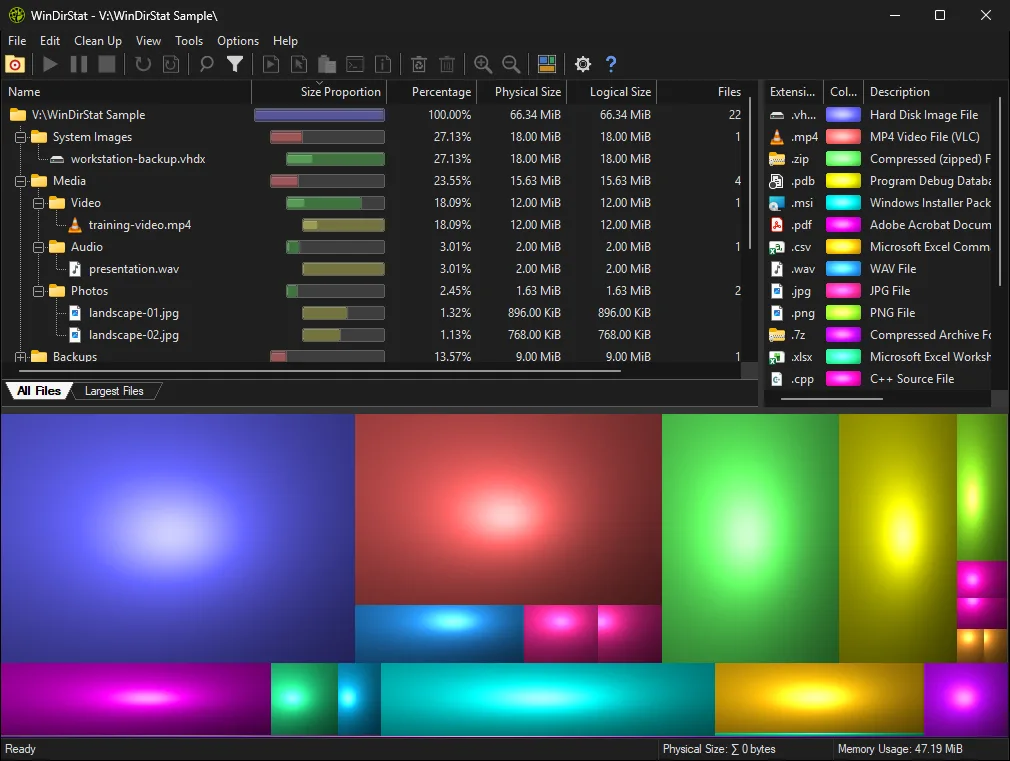
How do I free up space from a WinDirStat scan?
- Start with your own folders. Expand Users\your name in the tree and look at Downloads, Videos, Desktop and old project folders first.
- Check what a file is. Right-click it and choose Select in Explorer (Ctrl+E) to see it in context before you remove it.
- Delete to the Recycle Bin. Press Delete, read the list in the warning, and confirm. Nothing is gone until you empty the bin.
- Use the Windows cleanup shortcuts. For system space, open Clean Up > Run Windows Disk Cleanup Utility or Microsoft Storage Settings.
- Refresh and empty the bin. Press Shift+F5 to rescan, check the result, then choose Clean Up > Empty Recycle Bin.
What is safe to delete from a WinDirStat scan?
Anything you created or downloaded yourself and no longer need is safe: installers in Downloads, finished video exports, old phone backups, duplicate photo imports and virtual machines you have retired. Things to leave alone are the folders Windows and your programs manage, which include C:\Windows, C:\Program Files, C:\ProgramData and the hidden AppData folders inside each user profile. When a large item sits in one of those, uninstall the program that owns it from Settings > Apps, or use one of the Windows cleanup shortcuts below. WinDirStat’s own delete warning says the same thing: deleting important system files could stop Windows working, and checking is your responsibility.
What are the Windows cleanup shortcuts in WinDirStat?
The lower half of the Clean Up menu launches Windows’ own tools so you do not need to hunt for them. Run Windows Disk Cleanup Utility opens the classic cleanup for temporary files and update leftovers. Microsoft Storage Settings opens Settings > System > Storage. Launch Programs & Features opens the classic list of installed programs. Component Store Cleanup runs DISM with /AnalyzeComponentStore, /StartComponentCleanup or /StartComponentCleanup /ResetBase; the last option frees the most but means installed updates can no longer be removed. Remove Volume Shadow Copies deletes restore points, which removes your ability to roll back, so use it last. WinDirStat asks for confirmation before the ones that change the system, such as DISM, shadow copies and hibernation, a prompt added in version 2.8.0.
Can WinDirStat run my own cleanup commands?
Yes. Settings > Cleanups holds custom cleanup commands that appear under Clean Up > Custom Cleanup and on Ctrl+0 to Ctrl+9. Each one is a command line with placeholders such as %p for the selected item’s full path and %n for its name, plus options for which item types it works on, whether it recurses into subfolders and whether it asks first. A typical example is a command that empties a cache folder you clear every month.
How do I check that a cleanup actually freed space?
WinDirStat does not rescan by itself after you delete through Explorer or another program. Press F5 to refresh the selected folder or Shift+F5 to rescan everything, then compare the drive’s used space with the figure before. Space moved to the Recycle Bin still counts until you empty it. If the map keeps a large block you expected to vanish, press F7 for Show Unknown to see space WinDirStat could not attribute, and run it as administrator. Before you trust a cleanup tool, check that WinDirStat is safe. Checked against WinDirStat 2.9.0.
| Action | What it does | Use it for |
|---|---|---|
| Delete (to Recycle Bin) Delete | Moves the item to the Recycle Bin after a warning | Your own files; you can still restore them |
| Delete Permanently Shift+Delete | Deletes without the Recycle Bin, after a warning | Files you are certain about, on drives with no bin |
| Move to... Ctrl+M | Moves the item to another folder or drive | Big media and archives you want to keep |
| Compress | Applies NTFS compression (LZNT1, XPRESS or LZX) | Rarely used folders of text-like files |
| Remove Empty Folders | Deletes folders with nothing in them | Tidying after a large cleanup |
| Run Windows Disk Cleanup Utility | Opens Windows' own cleanup tool | Temporary files, update leftovers |
| Component Store Cleanup | Runs DISM on the WinSxS component store | Large C:\Windows\WinSxS, as administrator |
| Disable Hibernate File | Turns hibernation off, removing hiberfil.sys | Desktops that never hibernate |
Menu labels from lang_en.txt, shortcuts from windirstat.rc and warning defaults from Options.h at the checked release tag.
Frequently asked questions
Can I delete the Windows folder items WinDirStat shows as large?
Not by hand. Folders such as C:\Windows\WinSxS, C:\Windows\Installer and the files pagefile.sys and hiberfil.sys are managed by Windows. Use Disk Cleanup, Component Store Cleanup or Disable Hibernate File from the Clean Up menu, which change them the supported way.
Does WinDirStat warn before deleting files?
Yes. Both Delete (to Recycle Bin) and Delete Permanently show a warning that lists the files and asks you to confirm, and both warnings are on by default. You can turn either off with Do not show this message again, or back on under Settings > Prompts.