Short answer
Explorer's folder Properties sizes one folder at a time; WinDirStat sizes every folder on a drive in one scan and sorts them. After you install the MSI, right-click any folder or drive, choose WinDirStat (under Show more options on Windows 11), and it opens a scan of that location. Its Logical Size column matches Properties' Size, and Physical Size matches Size on disk.
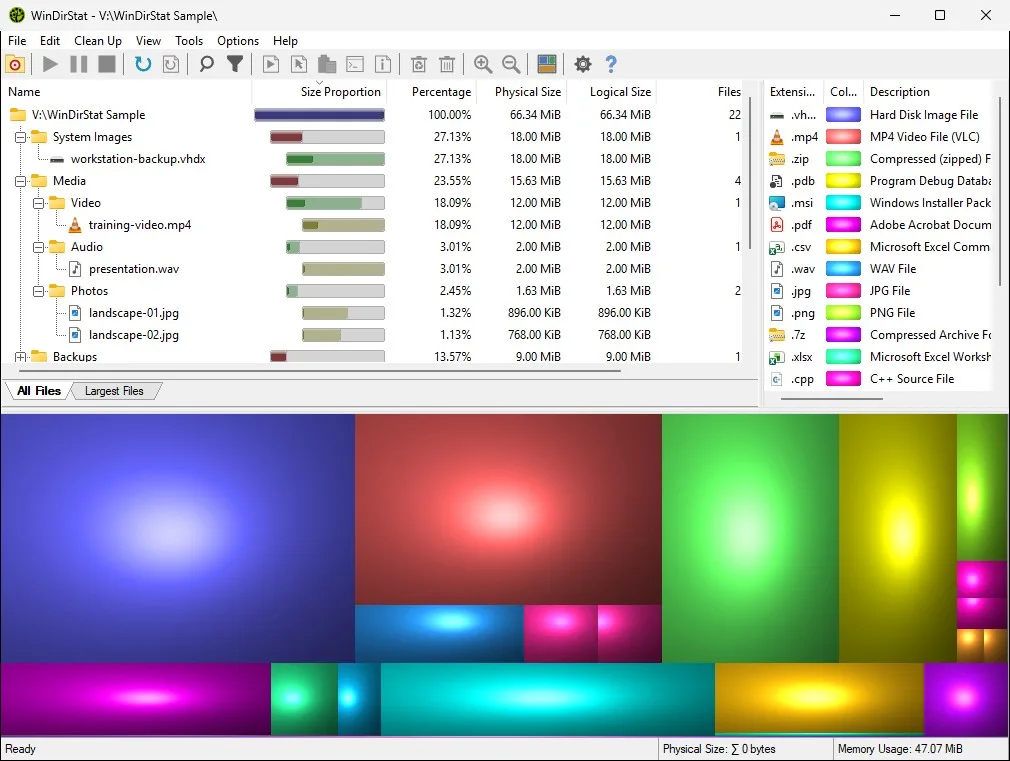
How do I replace Explorer folder Properties with WinDirStat?
- Install WinDirStat with the right-click entry. Keep Create Classic Shell Context Menu Entry ticked in the MSI, or install with winget, which keeps it on.
- Right-click the folder you would have checked. In File Explorer right-click the folder or drive; on Windows 11 choose Show more options, or press Shift+F10.
- Choose WinDirStat. Click the WinDirStat entry. It starts and scans that folder straight away.
- Read the whole tree at once. Expand the largest subfolders in the tree instead of opening Properties on each one.
- Act from the same window. Right-click an item for Select in Explorer, Move to, or Delete (to Recycle Bin).
Why stop using folder Properties to find big folders?
Folder Properties answers one question, how big this folder is, and it answers it again from scratch every time. Finding what fills a drive that way means opening Properties on each top-level folder, waiting for each count, then repeating one level down. WinDirStat does that whole walk once, for every folder at every level, and keeps the results in a tree you can sort and expand. It also answers questions Properties cannot, such as which file types take the most space and which files are the largest anywhere on the drive.
Where is the WinDirStat right-click entry?
The MSI's Create Classic Shell Context Menu Entry option, ticked by default on a new install, adds a WinDirStat item to the right-click menu of folders and drives for all users. It uses the classic menu, so on Windows 11 it appears after Show more options. Portable copies and anyone who unticked the option can add it later from the General settings page; without administrator rights WinDirStat registers it for your user only, a feature added in version 2.8.0. Clicking it starts WinDirStat with that folder or drive as the scan target.
Do the numbers match what Explorer shows?
They should, once you compare like with like. Explorer's Size is the logical size, the sum of file lengths, and its Size on disk is the physical size. WinDirStat lists both as columns and draws the treemap from physical size by default. Small gaps usually come from files one tool could read and the other could not: run WinDirStat as administrator to include protected folders. Hard links are another source of difference, since Explorer counts each name separately.
What about Storage settings and File Explorer's drive bar?
Keep using them for a quick look. The drive bar in This PC shows how full a drive is, and Settings > System > Storage groups the space into categories with cleanup actions. When those do not explain where the space went, WinDirStat is the next step. The storage checking guide covers the built-in tools, and the disk analyzer views page explains what each WinDirStat view is for. Checked against WinDirStat 2.9.0.
| Task | Explorer Properties | WinDirStat |
|---|---|---|
| Size of one folder | Size and Size on disk for that folder | Logical Size and Physical Size columns |
| Which subfolder is biggest | Open Properties on each subfolder | Sort the tree by Physical Size |
| Biggest files anywhere below | Not available | Largest Files tab, Ctrl+F2 |
| Space by file type | Not available | File-type list with color and total |
| Duplicate copies | Not available | Duplicate Files tab after a duplicate scan |
| Start from a folder | Right-click > Properties | Right-click > WinDirStat |
WinDirStat labels from lang_en.txt and the right-click entry from the MSI definition and PageGeneral.cpp at the checked release tag.
Frequently asked questions
Why doesn't WinDirStat appear when I right-click a folder?
On Windows 11 the entry is in the classic menu, so choose Show more options or press Shift+F10. If it is not there either, open Options > Settings > General in WinDirStat and tick Add WinDirStat to Explorer right-click context menu.
Why is Size on disk different from Size in folder Properties?
Size is the total length of the files; Size on disk is the space they occupy after cluster rounding and NTFS compression. WinDirStat shows the same pair as Logical Size and Physical Size, and its treemap uses the physical figure unless you press Ctrl+L.