Short answer
Use the WinDirStat MSI if you can approve an administrator prompt: it installs to Program Files, adds a Start menu entry and updates through winget. Use the portable WinDirStat.zip when you cannot install software or want it on a USB stick: unpack it, open the folder for your CPU and run WinDirStat.exe. Add an empty WinDirStat.ini beside it to keep settings in that folder.
How do I set up the portable WinDirStat?
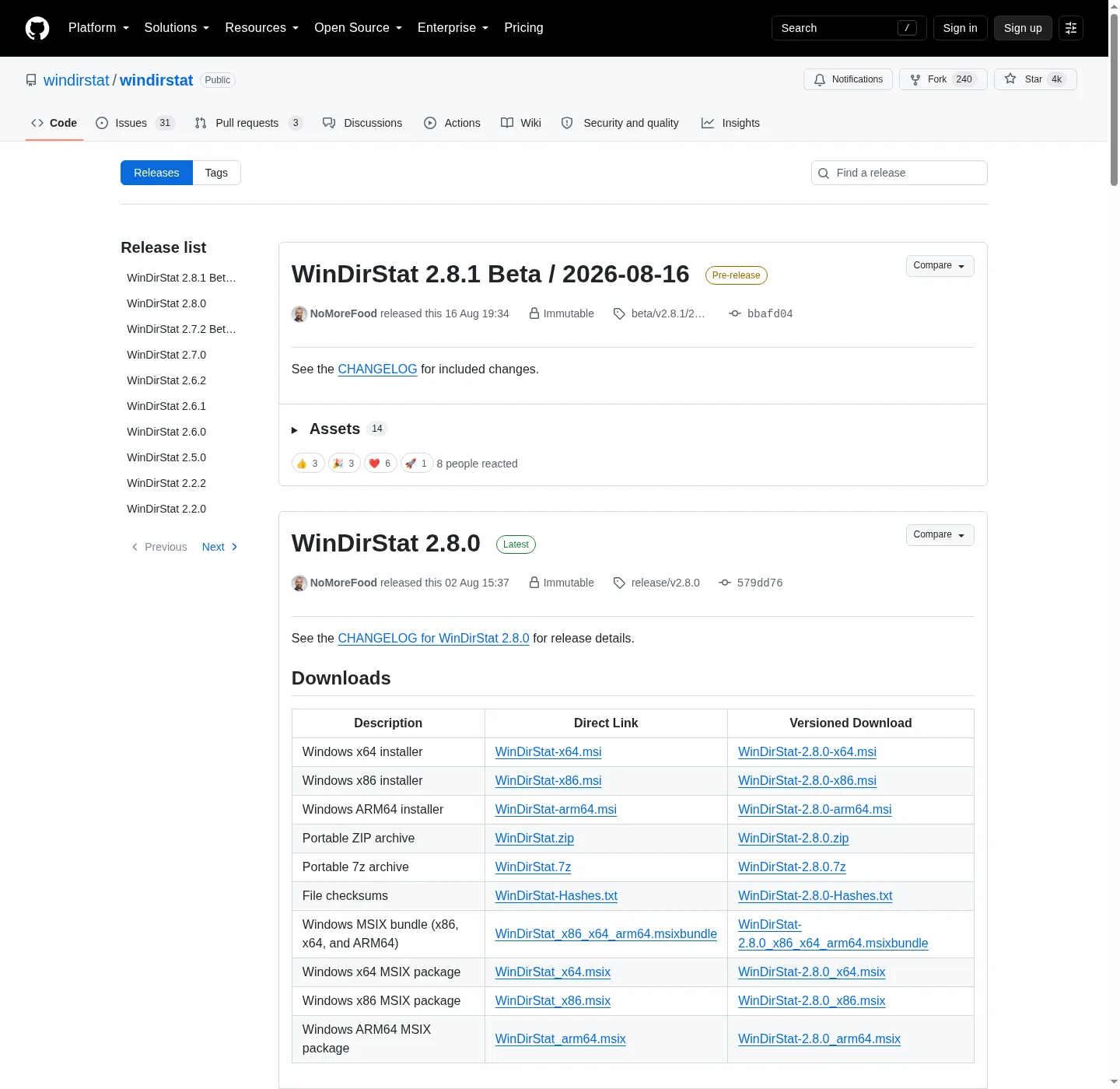
- Download the zip. Download
WinDirStat.zipfrom the current GitHub release, orWinDirStat.7zif you already have 7-Zip. - Extract it. Right-click the zip, choose Extract All, and pick a folder you own or a USB drive.
- Open the folder for your CPU. Open
x64on most PCs,arm64on Windows on ARM, orx86on 32-bit Windows. - Turn on portable mode. Open Options > Settings > General and tick Run in portable mode, or create an empty file named
WinDirStat.ininext toWinDirStat.exe. - Run it. Double-click
WinDirStat.exe. Settings now stay in the ini file and move with the folder.
What is inside the WinDirStat portable zip?
The zip holds three folders, arm64, x64 and x86, each with one WinDirStat.exe and nothing else: no installer, no DLLs and no settings file. The .7z archive has the same content in a smaller download. The zip on the current release is 3.4 MB, and the x64 MSI is 2.3 MB. Both are built from the same source tag, so the program you run is the same; only the setup around it differs.
How does WinDirStat portable mode work?
At startup WinDirStat looks for an .ini file with the same name as its exe in the same folder. If WinDirStat.ini exists, every setting is read from and written to that file; if not, settings go to the registry of the current Windows user. The check box Run in portable mode (use WinDirStat.ini file for settings) on the General settings page simply creates or deletes that file. Portable settings have existed since version 2.0.1. An MSI install can use portable mode too, but only if you can write to its Program Files folder, so it rarely makes sense there.
Can a portable WinDirStat add a right-click menu entry?
Yes, without administrator rights. Tick Add WinDirStat to Explorer right-click context menu on the General settings page. A normal user gets a per-user entry for folders and drives, which version 2.8.0 introduced; an elevated copy writes the entry for all users. If you move the portable folder later, untick and tick the option again so the entry points to the new location.
Which should I pick for a work PC or several PCs?
For one personal PC the MSI is the simpler choice: one command installs it and one command updates it. For a locked-down work PC without admin rights, the portable zip is the only route that runs, and it scans your own folders fine; whole-drive accelerated scans still need administrator rights. For IT deployment, the MSI supports silent installs and properties such as DISABLE_CONTEXTMENU=1, ENABLE_SHORTCUT=1 and ENABLE_ADD_TO_PATH=1. Not sure which CPU folder to open? The file chooser shows how to read it in Windows. Checked against WinDirStat 2.9.0.
| MSI installer | Portable zip or 7z | |
|---|---|---|
| Admin rights to set up | Yes, installs per machine | No |
| Where it lives | C:\Program Files\WinDirStat | Any folder, including a USB drive |
| Start menu entry | Yes | No; pin the exe yourself |
| Folder right-click entry | On by default, for all users | Optional, per user, from Settings > General |
| Where settings go | Registry, HKEY_CURRENT_USER\Software\WinDirStat | Registry, or WinDirStat.ini in portable mode |
| Updates | winget upgrade, or run the new MSI | Replace the folder with the new zip |
From the zip's folder layout at the current release, the installer definition and the settings code (WinDirStat.cpp, Property.cpp, PageGeneral.cpp) at the checked tag.
Frequently asked questions
Can I run WinDirStat from a USB stick?
Yes. Unpack the portable zip onto the stick and add an empty WinDirStat.ini next to the exe you use. Settings then travel with the stick, and nothing is written to the registry of the PC you plug it into, apart from any right-click entry you choose to add.
What are the MSIX files on the WinDirStat release?
They are Store-style packages for x64, ARM64 and x86, plus an msixbundle that holds all three so Windows picks the right one. The README suggests them for App Installer or Store-style deployment; most people should take the MSI or the zip instead.