WinDirStat is downloading: install it and run a first scan
By Drive Ledger editorial team Checked against WinDirStat 2.9.0, released September 26, 2026
Short answer
Your WinDirStat download has started. When WinDirStat-x64.msi finishes, open it, accept the license, keep the default folder, check the three Install Options and approve the User Account Control prompt. Then open WinDirStat from Start, answer the administrator question, pick one folder you know in the Select Drives dialog, and click OK to run your first scan.
Download WinDirStat 2.9.0
Pick your system and the download starts.
Windows
Download Windows x64 MSIPrefer one command? Paste it into the Run box (Win+R):
winget install -e --id WinDirStat.WinDirStat --accept-source-agreements --accept-package-agreementsPress Win+R, paste with Ctrl+V, press Enter. A window opens, installs and closes; then open the app from Start.
Windows 7 through 11 plus the Server list in the README, and App Installer for winget.
How do I install WinDirStat and run my first scan?
- Open the downloaded MSI. Click WinDirStat-x64.msi in your browser's downloads list, or open it from the Downloads folder.
- Accept the license and folder. Accept the GPL license, keep C:\Program Files\WinDirStat unless you need another folder, and click Next.
- Choose the Install Options. Keep Create Classic Shell Context Menu Entry for the folder right-click item; tick Create Desktop Shortcut or Add WinDirStat To System Path only if you want them.
- Approve and finish. Click Install, approve the User Account Control prompt, then click Finish.
- Open WinDirStat and answer the prompt. Open it from Start. Yes to the administrator question gives faster, more complete drive scans; No still works.
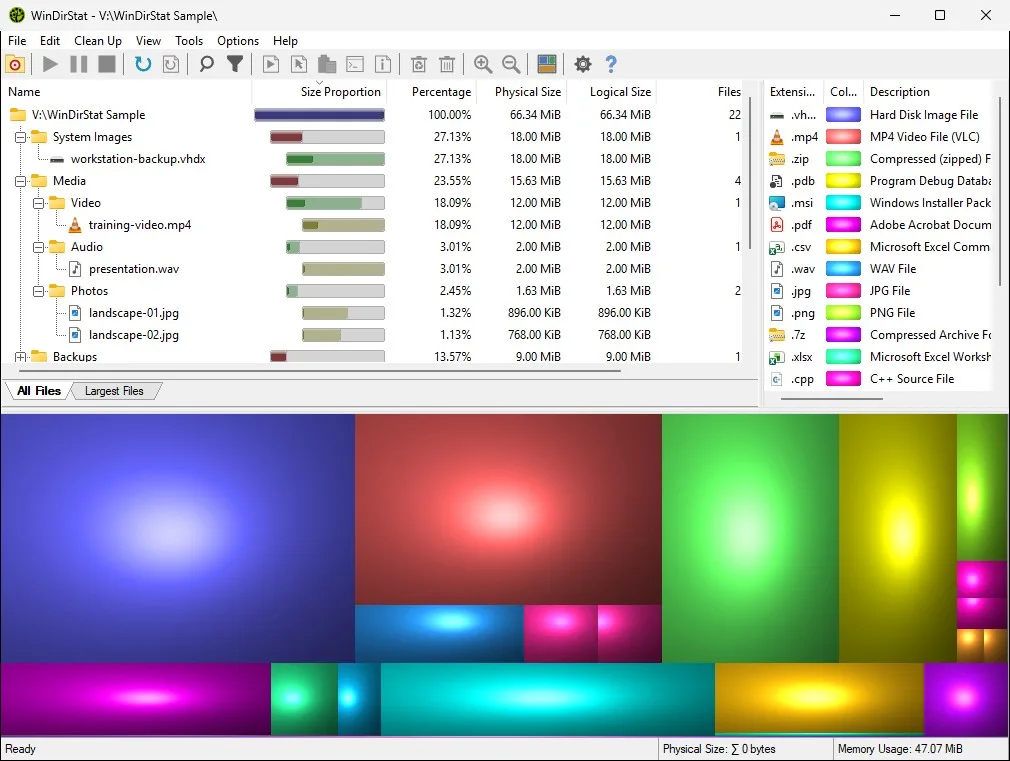
- Run a first scan. Choose Individual Folders, pick a folder you know, and click OK. Read the tree, the file-type list and the treemap.
What does the WinDirStat installer ask?
After its welcome page, the MSI shows the license, the install folder, Install Options and a ready-to-install page. Install Options holds three check boxes. Create Classic Shell Context Menu Entry is ticked on a fresh install and puts a WinDirStat item on the right-click menu of folders and drives, which is the quickest way to scan one folder later. Create Desktop Shortcut and Add WinDirStat To System Path start unticked. None of them change how scanning works, and you can change the right-click entry later in Options > Settings > General.
Why does WinDirStat ask about administrator rights?
At first start WinDirStat asks whether to run with elevated privileges to make scanning faster and more accurate. With administrator rights it can read the NTFS master file table directly when you scan a whole drive, and it can open protected folders that a normal user cannot list. Without them, it walks the folders one by one and shows what it could not read as unknown space. Either answer is safe; tick Do not show this message again if you want it to stop asking.
How do I read the first scan?
Wait until the status bar says Ready, then read the three panes together. The folder tree on the left lists every folder with its share of the scan; the file-type list on the right shows which extensions hold the most bytes; the treemap below draws every file to scale in its type's color. Click the largest block in the treemap and the tree jumps to that file with its full path. The treemap guide explains colors, zoom and layouts.
| Pane | What it tells you | Try this |
|---|---|---|
| Folder tree (All Files) | Size of every folder, with a Size Proportion bar | Expand the biggest folder one level at a time |
| File-type list | Which extensions use the most space, with their color | Click the top extension to highlight its files |
| Treemap | Every file as a rectangle sized by disk use | Click the largest block to find it in the tree |
| Largest Files tab | The 50 biggest files in the scan | Press Ctrl+F2 |
| Status bar | Scan progress, then Ready | Wait for Ready before judging sizes |
Labels and defaults from the WinDirStat source at the checked release tag.
How do I keep WinDirStat up to date?
Use the route you installed with. If winget installed it, run winget upgrade -e --id WinDirStat.WinDirStat now and then, or winget upgrade --all for everything at once. If you ran the MSI yourself, download the new MSI from the GitHub release and run it over the old version; your settings stay. The release feed announces each new version, and a star on the windirstat/windirstat repository tells the team the project is used. This page was checked against WinDirStat 2.9.0.
Frequently asked questions
My WinDirStat download did not start. What now?
Click the Download button in the box above, or open the release/v2.9.0 release on GitHub and click WinDirStat-x64.msi. You can also skip the download and paste the winget command from the box into the Run box (Win+R).
Should I scan the whole C: drive first?
You can, but a folder you know is a better first scan: it finishes in seconds and lets you check that the tree, the file-type list and the treemap match files you recognize. Scan the whole drive once you know how to read the three panes.
Does WinDirStat need an account or internet access?
No. There is no sign-in, and scanning works offline. The program only opens web pages when you use the Help menu's links to the website, the manual or the bug tracker.