Short answer
Download WinDirStat only from the windirstat/windirstat GitHub releases, the winget package WinDirStat.WinDirStat, the Microsoft Store or links on windirstat.net. For most PCs the file is WinDirStat-x64.msi (2.3 MB). Before running it, compare its SHA-256 with the value below using Get-FileHash; a match means you have exactly the file the WinDirStat team published.
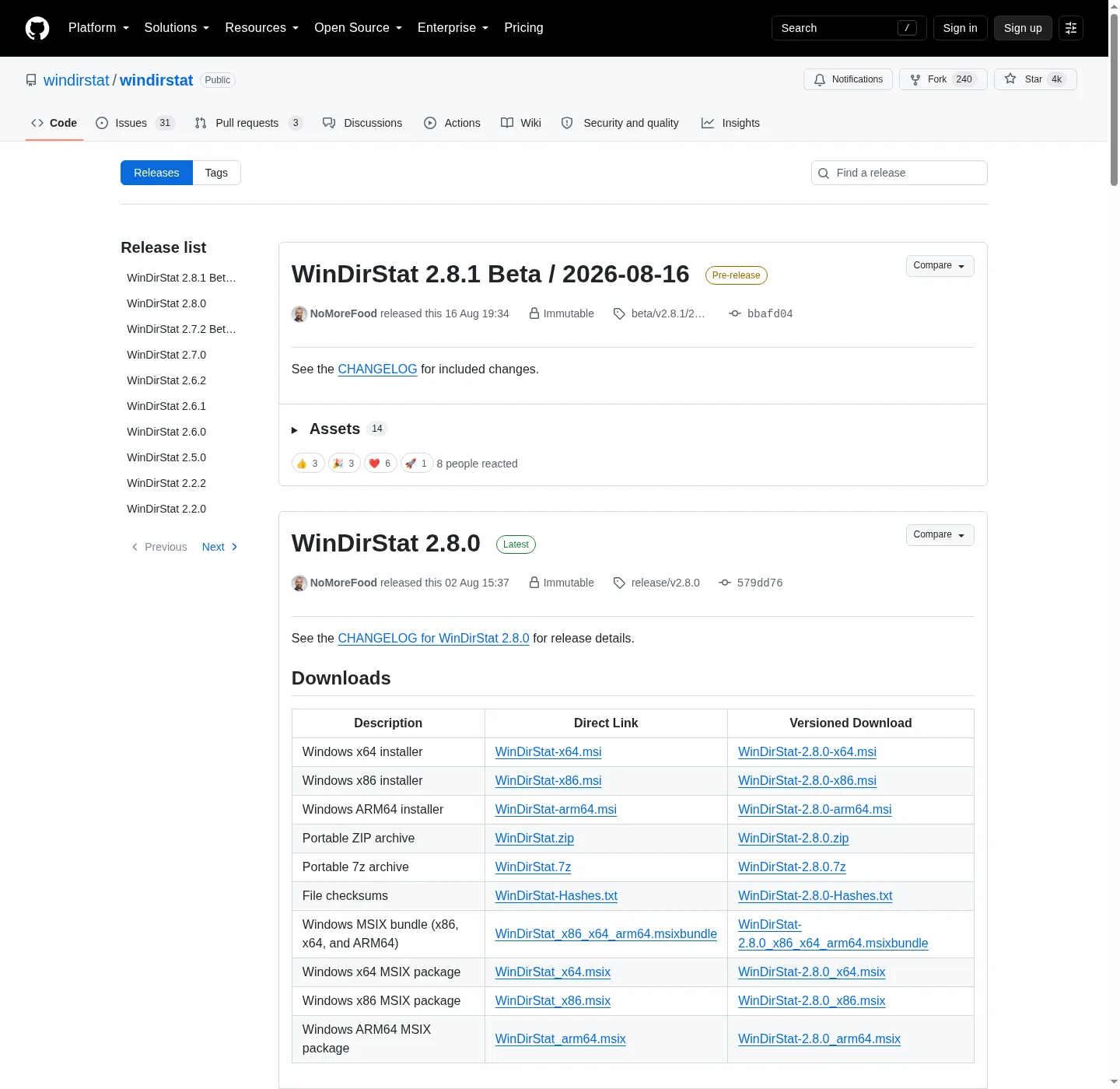
How do I download WinDirStat and check the file?
- Open an official source. Go to github.com/windirstat/windirstat/releases, or follow the Downloads link on windirstat.net. Skip download portals and look-alike domains.
- Pick the file for your PC. Take
WinDirStat-x64.msifor a normal Intel or AMD PC, the arm64 MSI for Windows on ARM, orWinDirStat.zipfor a portable copy. - Open PowerShell in Downloads. In File Explorer open Downloads, click the address bar, type powershell and press Enter.
- Calculate the hash. Run
Get-FileHash .\WinDirStat-x64.msi -Algorithm SHA256. - Compare it. The Hash value must match the SHA-256 in the table below exactly. If it differs, delete the file and download it again from GitHub.
- Run the installer. Double-click the MSI, accept the license, review the three Install Options and approve the User Account Control prompt.
Where are the official WinDirStat downloads?
WinDirStat's README names the official channels and warns against everything else. The GitHub releases page holds every installer, portable archive and MSIX package, with a SHA-256 digest for each file. The Windows Package Manager package WinDirStat.WinDirStat downloads the MSI from that same release and checks its hash before running it. The Microsoft Store listing installs and updates the Store version, and Chocolatey and Scoop carry community packages the README also lists. Links on windirstat.net lead to these same places.
winget install -e --id WinDirStat.WinDirStat --accept-source-agreements --accept-package-agreementsPress Win+R, paste with Ctrl+V, press Enter. A window opens, installs and closes; then open the app from Start. That route never shows you a download page at all, which removes the chance of clicking the wrong button.
Why does the WinDirStat README warn about download sites?
The WinDirStat team says the program's popularity has produced unofficial websites that copy its name, branding or downloads. Those sites are not run by the team, may offer old or modified files, and may expose you to malware. The team reports impersonation sites when it can, but takedowns do not always work, so a search result with "WinDirStat" in the domain proves nothing. The Official Downloads and Malware Warning section of the README is short and worth reading once.
What does a matching SHA-256 prove?
A SHA-256 hash is a fingerprint of a file's exact bytes. If your copy produces the same 64 characters as the official value, it is byte for byte the file the WinDirStat team uploaded: not cut short by a failed download and not swapped by a mirror. It only proves something when the reference value comes from a source you trust, so take it from the GitHub release itself or from WinDirStat-Hashes.txt on that release, never from the site that served the file. Microsoft documents Get-FileHash for this comparison. For WinDirStat 2.9.0, the winget manifest records the same MSI hashes that GitHub shows.
Which WinDirStat file should I pick?
Take the x64 MSI for almost every Windows 10 and 11 PC; the README calls it the right choice if you are not sure. Snapdragon laptops and other Windows on ARM devices need the arm64 MSI, and old 32-bit Windows needs the x86 MSI. WinDirStat-Hashes.txt is a list of checksums and WinDirStat-DebugSymbols.7z is for developers; neither is the program. The file chooser shows how to read your PC's type, and the releases page explains every file.
| File | Size | SHA-256 |
|---|---|---|
| WinDirStat-x64.msiWindows x64 MSI | 2.3 MB | 0a7d214586bb7c7fd030b8f2295bc7caa7f88a0cec094b196c803e2dba0d134d |
| WinDirStat-arm64.msiWindows ARM64 MSI | 2.2 MB | c795754078fa637eae800e4b1c1bbbaf55d9b81ada5ff5b17a38b48fd4993c4d |
| WinDirStat-x86.msiWindows x86 MSI | 2.2 MB | 9bf4996e833d5af2f2557da3dc7105ac15fb81d6ad2094e30d730adf8e87c919 |
| WinDirStat.zipPortable zip | 3.4 MB | 0d04d9f716b70502658595956ac3af5192f591c6d2636662eea170655546b891 |
| WinDirStat.7zPortable 7z | 2.3 MB | b6ea718dbf3b549c43f310241fb4285bf01601a037571d7a13172c9335d8009f |
Names, sizes and SHA-256 from the GitHub API for the release/v2.9.0 release, published September 26, 2026. They refresh automatically with each release, and the release's WinDirStat-Hashes.txt lists the same values.
Frequently asked questions
Is the WinDirStat download on other software sites safe?
It may be an unchanged copy, but you cannot tell without checking, and the README warns that some sites copying the WinDirStat name serve outdated or modified files. Download from GitHub or winget instead, or at least compare the file's SHA-256 with the value on the GitHub release before running it.
Why does SmartScreen warn about the WinDirStat installer?
Microsoft Defender SmartScreen warns about downloaded programs that have little reputation yet, which can happen with a newly released file. Check the SHA-256 first: if it matches the GitHub value, choose More info and Run anyway; if it does not, delete the file.