- WinDirStat-arm64.msi 2.2 MB 2.7k downloads
- WinDirStat-x64.msi 2.3 MB 239k downloads
- WinDirStat-x86.msi 2.2 MB 8.8k downloads
- WinDirStat.7z 2.3 MB 5.4k downloads
- WinDirStat.zip 3.4 MB 15k downloads
WinDirStat, the free disk space analyzer for Windows
Short answer
WinDirStat is a free, open-source disk space analyzer for Windows. It scans a drive or folder and shows what uses the space as a folder tree, a list of file types and a treemap in which every file is a rectangle sized by its disk use. To install it, press Win+R, paste the winget command from the box and press Enter, or download WinDirStat-x64.msi from GitHub.
- Free for home and work use under GPL-2.0, no account
- Folder tree, file types and treemap in one window
- Finds large and duplicate files, with Windows cleanup shortcuts
By Drive Ledger editorial team Checked against WinDirStat 2.9.0, released September 26, 2026
- Independent guide · not affiliated with The WinDirStat Team
- Free and open source · GPL-2.0, Windows
- Latest release 2.9.0 · September 26, 2026, official files
Install WinDirStat 2.9.0
Windows
Paste into PowerShell or Windows Terminal:
winget install -e --id WinDirStat.WinDirStat --accept-source-agreements --accept-package-agreementsPress Win+R, paste with Ctrl+V, press Enter. A window opens, installs and closes; then open the app from Start.
Package: WinDirStat.WinDirStat in microsoft/winget-pkgs, the id the WinDirStat README gives.
Or download the file directly from the official GitHub release:
Download Windows x64 MSIAlso on this release: Windows ARM64 MSI, Windows x86 MSI, Portable zip, Portable 7z
Verify the download (SHA-256)
GitHub publishes this hash for WinDirStat-x64.msi. It must match exactly.
0a7d214586bb7c7fd030b8f2295bc7caa7f88a0cec094b196c803e2dba0d134d PowerShell: Get-FileHash .\WinDirStat-x64.msi -Algorithm SHA256
Windows 7 through 11 plus the Server list in the README, and App Installer for winget.
Every file comes from the windirstat/windirstat release/v2.9.0 release on GitHub, published by the WinDirStat team.
How do I install WinDirStat on Windows?
- Copy the install command. Click Copy in the install box to copy the winget command for WinDirStat.
- Open the Run box. Press Win+R on the keyboard.
- Paste and run. Press Ctrl+V, then Enter. A window opens, downloads the official MSI from GitHub, checks its hash and installs it.
- Approve the prompt. Click Yes on the User Account Control prompt; WinDirStat installs for every user of the PC.
- Open WinDirStat and scan. Find WinDirStat in Start, pick a drive or folder in the Select Drives dialog, and click OK.
The same command works in PowerShell or Windows Terminal if you want to watch the output. If Windows says winget is not recognized, the PC is missing Microsoft's App Installer; the winget setup guide fixes that in a few minutes, or you can download the MSI directly from the box above. The full install guide covers the MSI's options, and the portable guide covers running it without installing.
What is WinDirStat?
WinDirStat, short for Windows Directory Statistics, is a disk usage analyzer and cleanup assistant for Windows. You point it at a drive or folder, it reads every file, and it shows you where the space went in three linked panes. It is based on KDirStat, a Linux tool, and has been maintained for years by the WinDirStat team, with its source code on GitHub as windirstat/windirstat. It is free software under the GNU GPL version 2, so it costs nothing, carries no adverts and needs no account, including on a company PC.
Free for any use
GNU GPL version 2; read the code, use it at home or at work, no registration or paid tier.
Every file to scale
A treemap draws each file as a rectangle sized by its disk use and colored by its type.
Small and local
A 2.3 MB installer; scans run on your PC and nothing is uploaded.
The program is a single native WinDirStat.exe. Version 2.9.0 moved its interface from Microsoft's MFC library to plain Win32, which made the program smaller, and it needs no .NET or browser runtime. Settings are stored per user in the registry, or in a WinDirStat.ini file beside the exe if you run it in portable mode.
What does WinDirStat show after a scan?
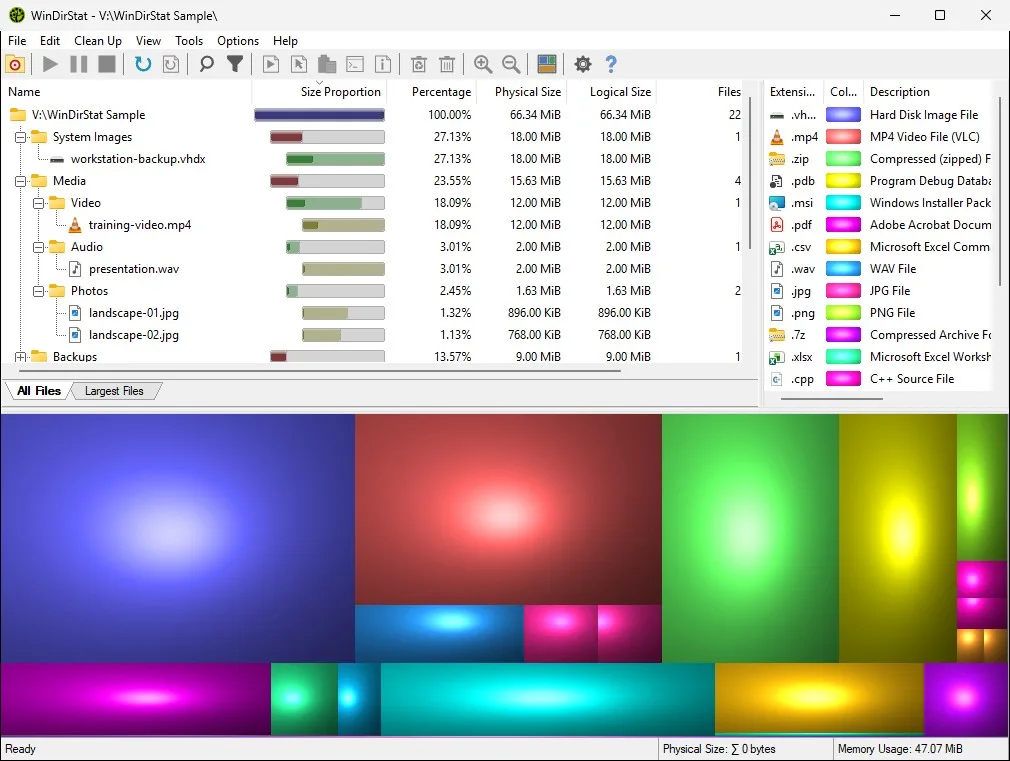
The main window has three panes that stay in sync. On the left, the All Files tree lists every folder with a Size Proportion bar, its percentage of the scan, its physical and logical size and its number of files. On the right, the file-type list shows each extension with its color, total size and share. Below both, the treemap draws every file as a rectangle, grouped inside its folders. Click a rectangle and the tree opens to that file; click an extension and all its files light up in the map.
Tabs under the tree add more lists: Largest Files (Ctrl+F2) shows the 50 biggest files anywhere in the scan, Duplicate Files (Ctrl+F3) groups identical copies once you turn on the duplicate scan, and Search Results collects matches for a name, size range or owner. The View menu swaps the treemap for a flame graph or a sunburst chart. The disk analyzer views page explains each one.
Which install route should I choose?
All routes install the same program, so the choice is about convenience. The Run-box command is quickest on a PC with winget and gives you a one-line update later. The x64 MSI suits a PC without winget, the ARM64 and x86 MSIs cover Windows on ARM and 32-bit Windows, and the portable zip runs without installing anything. The MSI puts WinDirStat in C:\Program Files\WinDirStat for all users and adds a WinDirStat entry to the folder right-click menu unless you untick it.
| Route | Command or file | Best for |
|---|---|---|
| winget (Run box) | winget install -e --id WinDirStat.WinDirStat | Fastest; one paste, then winget upgrade for updates |
| Official x64 MSI | WinDirStat-x64.msi, 2.3 MB | Any Intel or AMD PC; the README's default file |
| ARM64 or x86 MSI | WinDirStat-arm64.msi or WinDirStat-x86.msi | Windows on ARM, or 32-bit Windows |
| Portable zip | WinDirStat.zip | No admin rights, or a USB stick |
| Microsoft Store | Store listing 9PH1GL95P3WF | Store-managed updates |
Files from the release/v2.9.0 release; routes from the README installation section.
Whichever you pick, get it from the GitHub release, winget, the Microsoft Store or a link on windirstat.net. The README warns that other sites copy the WinDirStat name and may serve modified files. The download page lists the current files with sizes and SHA-256 hashes, and the file chooser shows how to read your processor type in Settings.
How does WinDirStat compare with WizTree, TreeSize and SpaceSniffer?
All four are popular disk space analyzers for Windows, and all four show where the space went. The differences are license, speed on large drives and what you can do after the scan. WinDirStat is the only one that is open source and free for any use, and the only one here with a duplicate finder and cleanup menu in its free version. WizTree and WinDirStat both read the NTFS master file table for fast whole-drive scans; WinDirStat does it when it runs as administrator.
| Tool | License | Fast NTFS scan | Duplicates | Compare |
|---|---|---|---|---|
| WinDirStat | GPL-2.0, free for any use | Yes, as administrator | Yes, by content hash | This site |
| WizTree | Free for personal use | Yes | Not listed | WinDirStat vs WizTree |
| TreeSize Free | Free for private use | Not listed | Paid editions | WinDirStat vs TreeSize |
| SpaceSniffer | Freeware | Not listed | Not listed | WinDirStat vs SpaceSniffer |
| Explorer and Storage settings | Built into Windows | No | No | Check storage on a PC |
WinDirStat from its source at the checked tag; other tools from their publishers' product pages, read 2026-09-27.
Windows' own tools are fine for a quick look: the drive bar in This PC, Settings > System > Storage, and folder Properties. They stop at totals and categories, which is the gap a disk space analyzer fills. The Explorer switching guide shows how WinDirStat's columns map to what Properties shows.
How do I find what is filling my drive?
Scan the drive, wait for the status bar to say Ready, and start with the biggest thing you can see. In the treemap that is the largest block of one color, usually a single folder of videos, disk images or game files. In the tree, click the Physical Size header and expand the top folder one level at a time until the size spreads out. In the file-type list, the extension at the top tells you what kind of data dominates. Three places to check first are Downloads, old backups of phones or PCs, and virtual machine or game folders.
By default WinDirStat measures physical size, the space files really occupy on disk, and hides free and unknown space; press F6 and F7 to show them. Junctions and symbolic links are skipped so nothing is counted twice. The treemap guide and the large files guide go step by step.
How do I free up space safely with WinDirStat?
Delete your own files first, from folders you recognize, and leave Windows and program folders to Windows' tools. Select an item and press Delete to move it to the Recycle Bin; WinDirStat shows a warning listing the files before it does anything. Shift+Delete deletes permanently, with its own warning. For space held by Windows, the Clean Up menu opens Windows Disk Cleanup, Storage Settings, DISM component cleanup and the hibernation switch. Since version 2.8.0 those system actions ask for confirmation too.
After a cleanup, press Shift+F5 to rescan so the map matches the drive. The cleanup guide lists every action and when to use it, and the duplicate files guide covers removing or hard-linking identical copies.
Is WinDirStat free and safe to use?
Yes to both, with two habits: download it only from an official channel, and keep it updated. The source code contains no telemetry or update checker; scans stay on your PC unless you save them to a file. The real risks are look-alike download sites and deleting system files by mistake, and the delete warnings are on by default for the second. Security fixes ship in normal releases, such as the protection against DLL sideloading added in version 2.6.2. The safety guide covers the license, the maker, antivirus alerts and what administrator rights are used for.
What changed in recent WinDirStat releases?
WinDirStat has changed a lot in the 2.x series. Version 2.9.0 added scanning of phones and other MTP devices, selection of several individual folders at once, recovery of deleted files on NTFS and exFAT volumes, and optional sparse hashing for large duplicate candidates. 2.8.0 brought the flame graph and sunburst views and per-user right-click registration. 2.7.0 added Storage Analytics, permission scanning and xxHash, now the default hash algorithm. The full changelog lists every change.
How do I update or remove WinDirStat?
WinDirStat has no built-in updater. If winget installed it, run the upgrade command below now and then; otherwise download the newest MSI and run it over the old copy, and your settings survive. To remove it, open Settings > Apps > Installed apps and uninstall WinDirStat, which also removes its right-click entry.
winget upgrade -e --id WinDirStat.WinDirStatThe winget guide lists the install, upgrade, pin and uninstall commands, and the releases page always shows the current version and its files. Every default on this site was read from the WinDirStat 2.9.0 source code; the editorial policy explains how pages are re-checked when a new version ships.
Official releases
All releases on GitHub- GitHub stars
- 4,229
- Downloads, last 3 releases
- 2.6M
- Latest version
- 2.9.0
2.8.0
release/v2.8.0
- WinDirStat-arm64.msi 2.8 MB 17k downloads
- WinDirStat-x64.msi 2.8 MB 1.3M downloads
- WinDirStat-x86.msi 2.6 MB 40k downloads
- WinDirStat.7z 3.9 MB 20k downloads
- WinDirStat.zip 5.4 MB 85k downloads
2.7.0
release/v2.7.0
- WinDirStat-arm64.msi 2.7 MB 13k downloads
- WinDirStat-x64.msi 2.8 MB 707k downloads
- WinDirStat-x86.msi 2.6 MB 25k downloads
- WinDirStat.7z 3.6 MB 15k downloads
- WinDirStat.zip 5.4 MB 51k downloads
Counts come from the GitHub API and cover only GitHub downloads of the release/v* releases listed. Installs through winget, the Microsoft Store, Chocolatey and Scoop are not included.
Frequently asked questions
Is WinDirStat still maintained?
Yes. The WinDirStat team publishes new versions on GitHub, with 2.9.0 released on 2026-09-26, and it has shipped a stable release roughly every month since May 2026, with beta builds in between.
Does WinDirStat work on Windows 11?
Yes. The README lists Windows 11 with Windows 7, 8, 8.1 and 10 and Windows Server 2008 R2 through 2025. On Windows 11 its right-click entry for folders sits under Show more options.
Is there a WinDirStat for Mac or Linux?
No. WinDirStat is a Windows program. Its README points to windirstat.net for related tools on other systems; the best known is QDirStat for Linux, a separate project by the author of KDirStat.
How big is the WinDirStat download?
The current x64 installer, WinDirStat-x64.msi, is 2.3 MB, and the portable zip with all three builds is a few megabytes. The installed program is a single WinDirStat.exe in C:\Program Files\WinDirStat.