Short answer
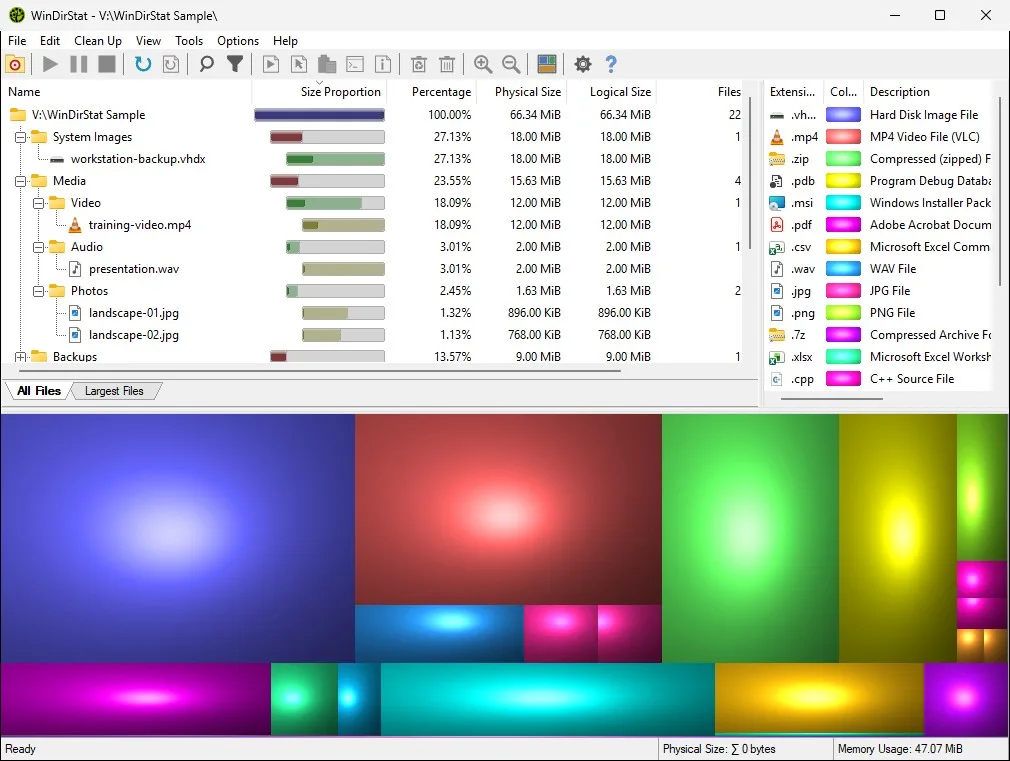
A disk analyzer scans a drive and shows what uses its space. WinDirStat, a free open-source disk analyzer for Windows, does it with three panes that stay in sync: a folder tree sorted by size, a list of file types with their totals, and a treemap where each file is a rectangle sized by its disk use. Tabs add Largest Files, Duplicate Files, Search Results and a File Watcher.
How do I analyze a disk with WinDirStat?
- Start a scan. Open WinDirStat and pick All Local Drives, Individual Drives or Individual Folders in the Select Drives dialog.
- Read the folder tree. The All Files tab lists folders with a Size Proportion bar, Percentage, Physical Size and Logical Size.
- Read the file types. The list on the right shows each extension's color, total size and share of the scan.
- Read the treemap. Below the tree, every file is drawn as a rectangle in its file type's color.
- Switch views when you need a list. Use Ctrl+F2 for Largest Files, Ctrl+F3 for Duplicate Files and Ctrl+F4 for Search Results.
How do the three WinDirStat panes work together?
Selecting something in one pane selects it in the others. Click a large rectangle in the treemap and the folder tree opens to that file; click an extension in the file-type list and the matching files are highlighted in the treemap. That link is what makes a disk analyzer faster than reading numbers: the treemap shows where the space is, the tree gives the exact path, and the type list explains what kind of data it is. The Window Layout button on the toolbar rearranges the panes, a chooser added in version 2.7.0.
What are the flame graph and sunburst views?
They are alternative drawings of the same scan, added in version 2.8.0. The sunburst draws the drive as rings, with the root in the middle and each ring one folder level deeper, so deep folder chains are easy to follow. The flame graph stacks folders as bars whose width is their size, which makes it easy to compare siblings at the same level. Both use the same colors and selection as the treemap, and you switch between them from the View menu.
What else can WinDirStat analyze besides size?
The Tools menu adds three analyses. Start File Watcher records files being created, deleted, modified and renamed while you watch, which helps catch a program that keeps filling a folder. Scan Permissions, added in 2.7.0, lists who has which rights on the scanned folders and can export them. Storage Analytics estimates what the scanned data would cost in hot, cool, cold and archive cloud storage tiers. Most people never need these, but they share the same scan.
Can I save a disk analysis and open it later?
Yes. File > Save Results To CSV/JSON... writes the whole scan to a file, and Load Results From CSV/JSON... opens it again without rescanning, which is handy for comparing a drive before and after a cleanup or for looking at another PC's scan. From the command line, WinDirStat.exe C:\ /saveto scan.csv scans without opening the window and writes the file. JSON support arrived in version 2.6.0. Checked against WinDirStat 2.9.0.
| View | Answers | Open it with |
|---|---|---|
| All Files (folder tree) | Which folders are biggest, level by level | Ctrl+F1 |
| Largest Files | Which single files are biggest anywhere | Ctrl+F2 |
| Duplicate Files | Which files are identical copies | Ctrl+F3, after a duplicate scan |
| Search Results | Which files match a name, size or owner | Ctrl+F, then Ctrl+F4 |
| File types list | Which kinds of files use the most space | F8 shows or hides it |
| Treemap, flame graph, sunburst | Where the space is, drawn to scale | View menu; F9 shows or hides it |
| File Watcher | What is being created, changed or deleted now | Tools > Start File Watcher |
| Storage Analytics, Permissions | Cloud-tier cost estimate; who can access what | Tools menu |
View names from lang_en.txt and shortcuts from the accelerator table in windirstat.rc at the checked release tag.
Frequently asked questions
Is a disk analyzer the same as a disk space analyzer?
Yes, people use both names for tools that show what fills a drive. A disk analyzer in this sense is different from a disk checker such as CHKDSK, which tests the file system for errors; WinDirStat can start CHKDSK from its Tools menu but does not replace it.
Can WinDirStat analyze an external or network drive?
Yes. Pick it in the Select Drives dialog or type its path under Individual Folders. External NTFS drives can use accelerated scanning when WinDirStat runs as administrator; network shares are read folder by folder, which is slower.