Short answer
WinDirStat finds duplicate files only when you tick Scan for duplicate files (impacts performance) in the Select Drives dialog; it is off by default. After the scan, press Ctrl+F3 for the Duplicate Files tab. Each group holds files with the same size and the same content hash (xxHash by default), with every copy's full path listed underneath.
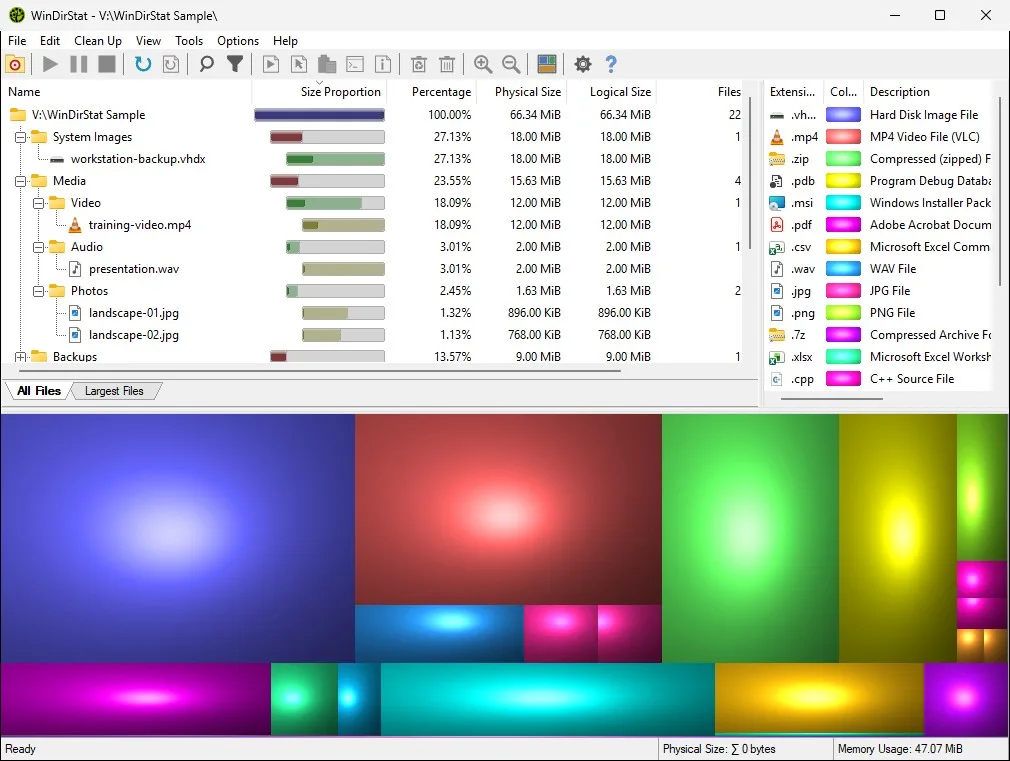
How do I find duplicate files in WinDirStat?
- Start a new scan. Press Ctrl+O, or choose File > Select Target, to open the Select Drives dialog.
- Turn on duplicate detection. Tick Scan for duplicate files (impacts performance) at the bottom of the dialog.
- Pick what to scan and start. Choose a drive or Individual Folders, then click OK and let the scan and hashing finish.
- Open Duplicate Files. Press Ctrl+F3, or click the Duplicate Files tab under the folder tree.
- Review each group. Expand a group, keep the copy in the right place, and right-click the others for Delete (to Recycle Bin).
How does WinDirStat decide two files are duplicates?
It works in two passes so it never hashes more than it must. First it groups files by exact size; a file with a unique size cannot have a copy and is never read. Then it hashes the files that share a size, in stages that read more of each file only while the candidates still match, and finishes with a hash of the whole file. Files end up in one group only when both the size and the full hash are equal. Hash-based duplicate finding goes back to version 2.0.1; the algorithm became selectable in 2.6.0 and xxHash was added in 2.7.0.
Why does WinDirStat skip OneDrive and other cloud files?
Reading a cloud placeholder, such as a OneDrive file set to online-only, makes Windows download it in full. To avoid pulling gigabytes from the cloud during a scan, Skip reading cloud links during duplicate detection is on by default, and WinDirStat shows a warning the first time it meets such a file. Turn the setting off only if the files are already stored locally or you are happy to download them.
Is the sparse hash option safe for large files?
Use sparse hashes for duplicate detection in files over 64 MiB, added in version 2.9.0, hashes samples of big files instead of every byte. It makes large video or disk-image folders much faster to check, but two files that differ only in an unsampled region could land in one group. Keep it off before you delete anything important, or open both copies to confirm.
What does Deduplicate with Hardlink do?
Clean Up > Deduplicate with Hardlink replaces the selected copies with NTFS hard links to a single file, so every path keeps working but the data is stored once. It frees the space without deleting any name, and WinDirStat asks for confirmation first. The catch is that the linked paths now share one file: editing one edits them all. Use it for identical read-only material such as installer archives, and delete real copies instead when you do not need both paths.
How do I export the WinDirStat duplicate list?
Choose File > Save Duplicates To CSV/JSON… after the scan. The file lists every group with its hash and the paths of its members, which is useful for reviewing in a spreadsheet before you delete anything. The same export runs without the window from the command line: WinDirStat.exe D:\ /savedupesto dupes.csv scans D: with duplicate detection on and writes the list. The next step is cleaning up from the scan. Checked against WinDirStat 2.9.0.
| Setting | Where | Default |
|---|---|---|
| Scan for duplicate files (impacts performance) | Select Drives dialog | Off |
| Hash algorithm | Settings > Advanced | xxHash (also MD5, SHA1, SHA256, SHA384, SHA512) |
| Skip reading cloud links during duplicate detection | Settings > Advanced | On |
| Use sparse hashes for duplicate detection in files over 64 MiB | Settings > Advanced | Off |
| Show cloud links warning prompt during duplicate detection | Settings > Prompts | On |
Defaults from Options.h, algorithm list from HelpersTasks.h and labels from lang_en.txt at the checked release tag.
Frequently asked questions
Why is the WinDirStat Duplicate Files tab empty?
Duplicate detection is off unless you tick Scan for duplicate files in the Select Drives dialog before the scan. Tick it, run the scan again, and wait for hashing to finish; the tab only fills once at least two files share a size and a hash.
Does WinDirStat compare file names to find duplicates?
No. Names do not matter. WinDirStat first groups files of exactly the same size, then hashes only those files, so report.pdf and report (1).pdf land in one group only if their bytes are identical.